
Common problems and fixes
Find what went wrong, see why it happens, then open the guide with the fix.
- My file imports at the wrong size
- My laser cut does not match the print
- My layers do not line up or cut twice
- My inkjet print is scaled or clipped
- How do I find laser settings for this material?
- My 3D print comes out in one colour
- My Cricut cuts every letter separately
- My UV print looks pale or see-through
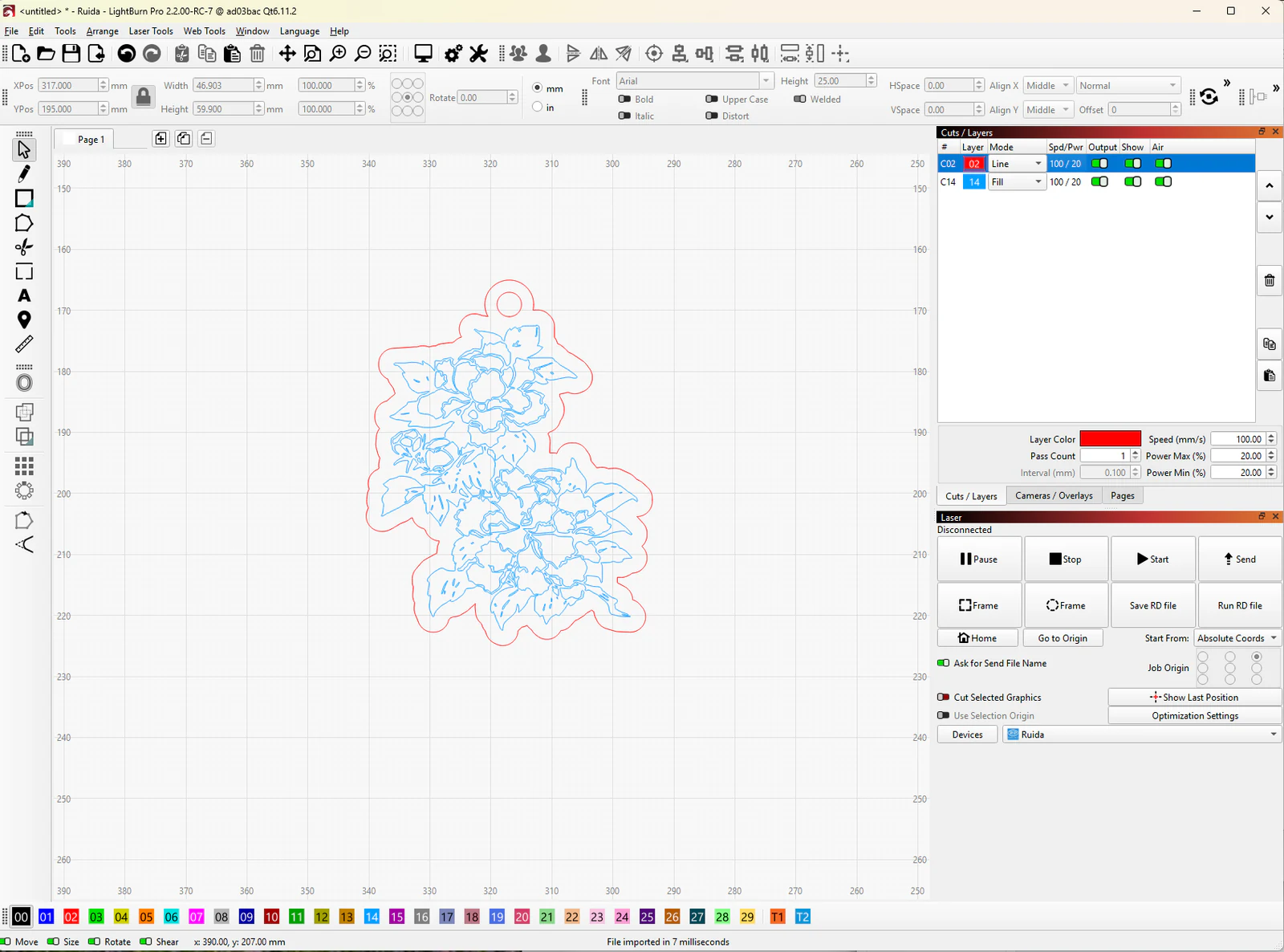
My file imports at the wrong size
- Why it happens
- Some files carry no physical size, and software that guesses the units or the page margins gets the scale wrong.
- Fix
- After importing, check one measurement you know in millimetres, and choose the export that carries real dimensions.
My laser cut does not match the print
- Why it happens
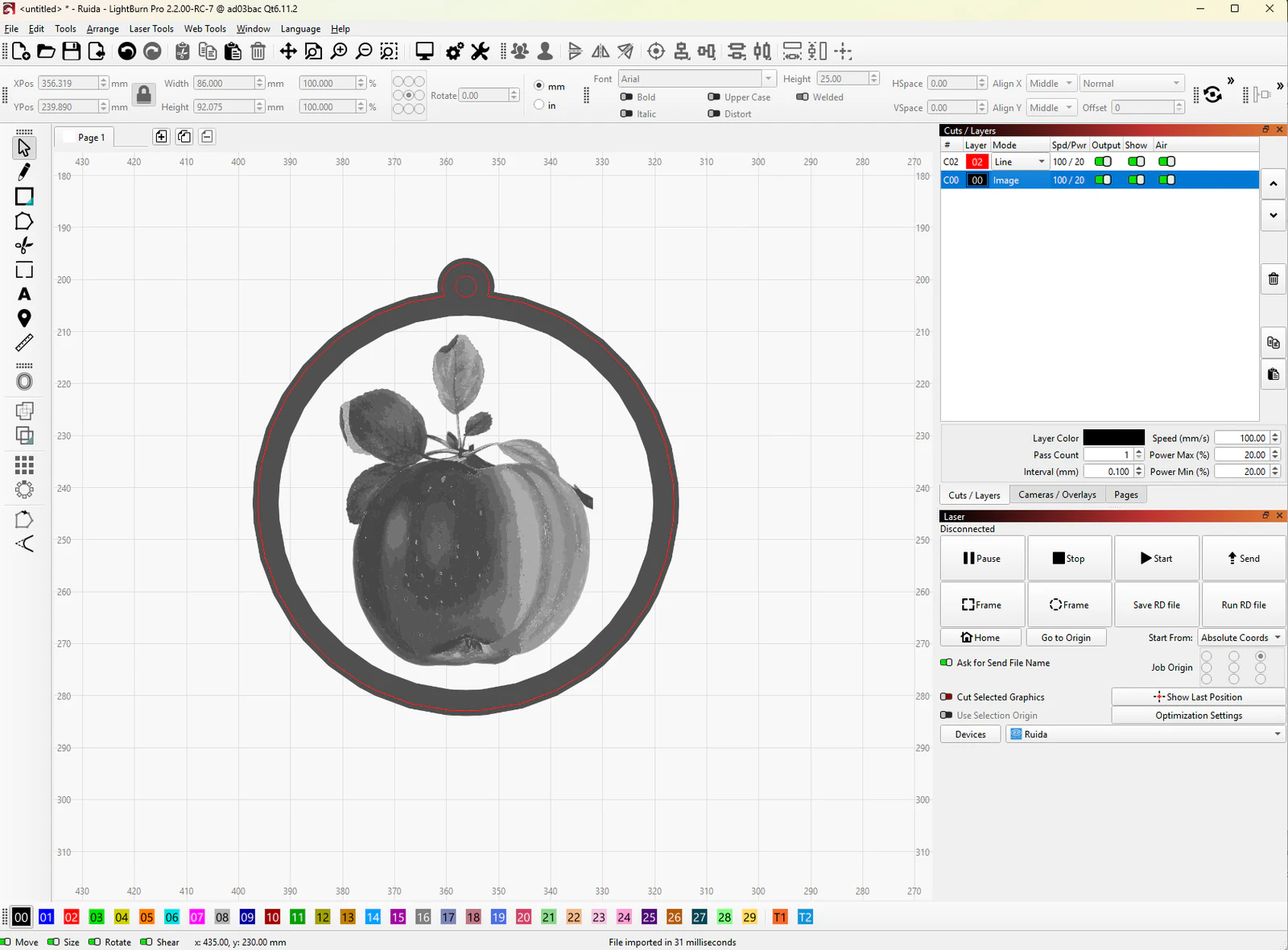
- The printed artwork and the cut path only line up when both files share the same origin, the same scale and registration marks your machine can read.
- Fix
- Keep both files at 100%, add the registration targets and check the outline on scrap before cutting.
My layers do not line up or cut twice
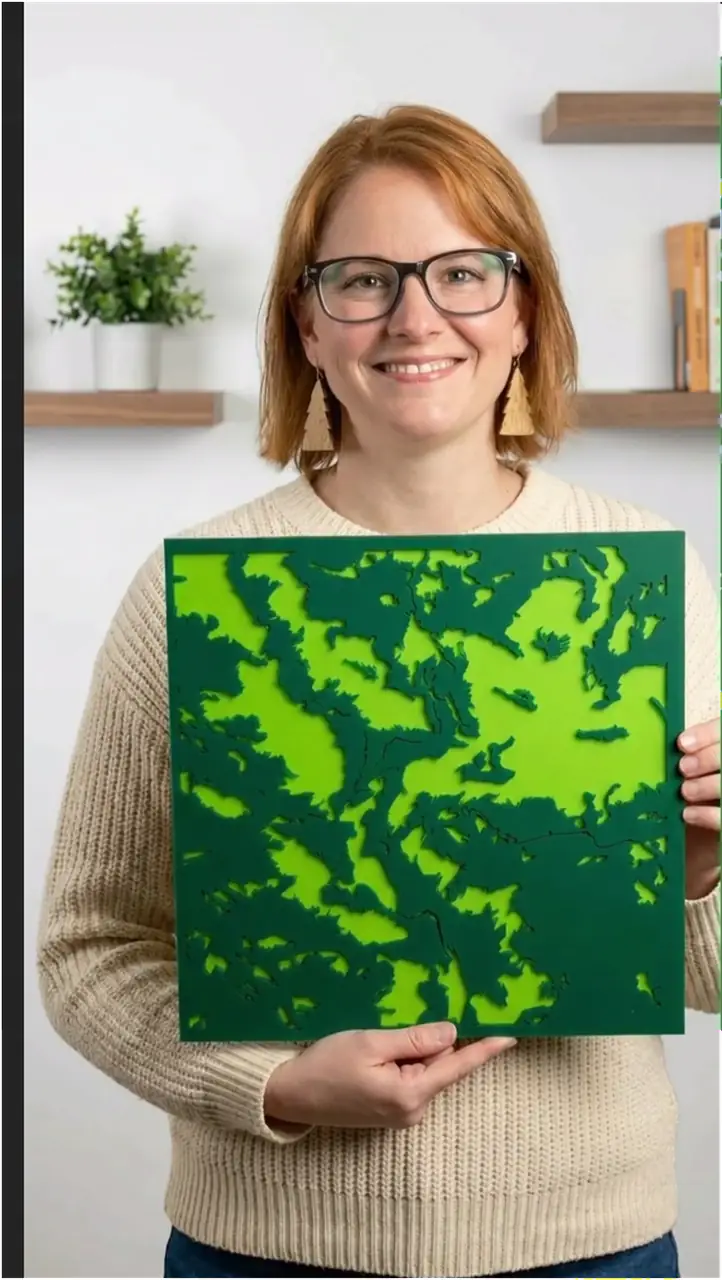
- Why it happens
- Every sheet in a stack needs the same frame and scale, and a duplicate line makes the laser cut the same path twice.
- Fix
- Keep the shared frame on every layer, remove duplicate paths and set one operation per colour.
My inkjet print is scaled or clipped
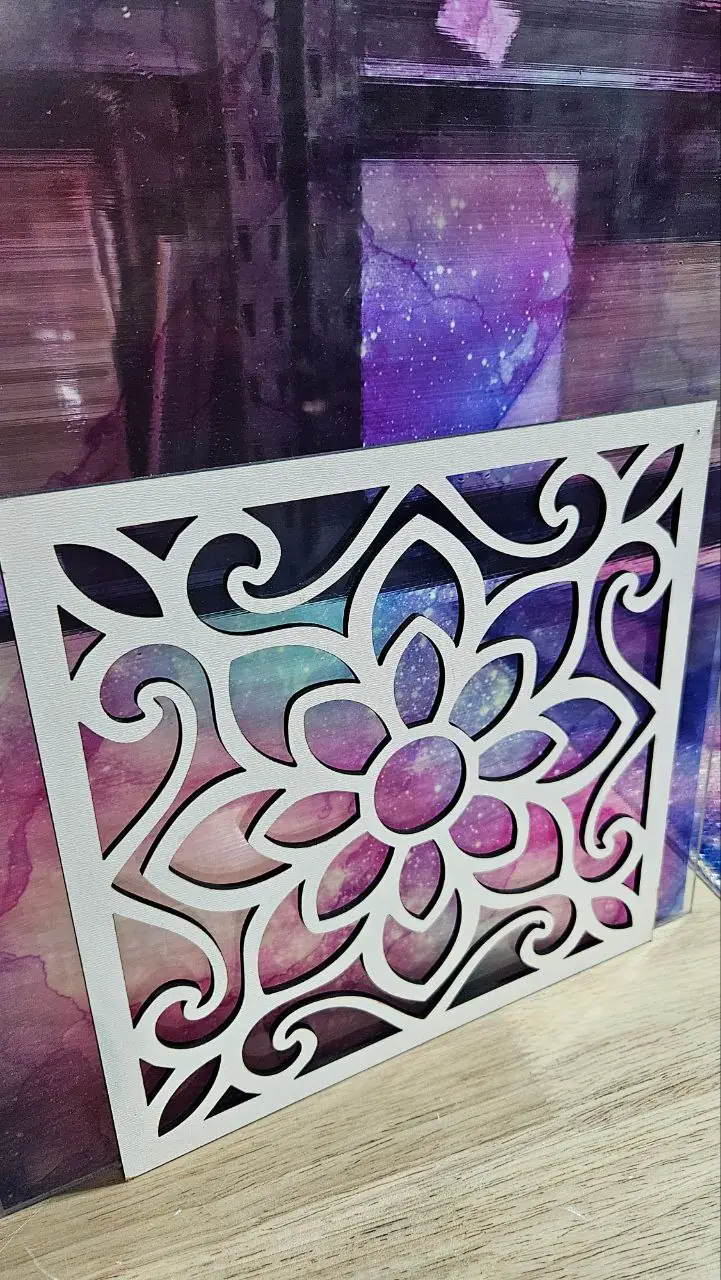
- Why it happens
- Printer drivers scale to fit the page or add margins unless you tell them not to.
- Fix
- Print the PDF at actual size (100%) and measure the test square before printing the real piece.
How do I find laser settings for this material?
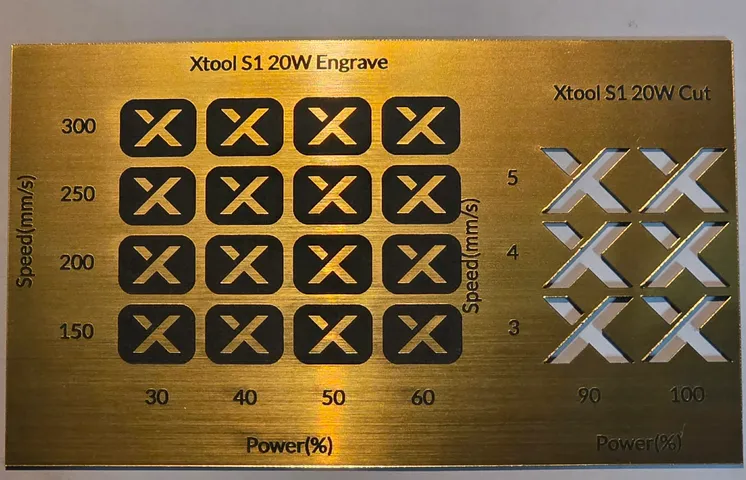
- Why it happens
- Power and speed depend on your laser, its lens and the exact sheet you bought.
- Fix
- Run a material test grid on a scrap of the same sheet and note the settings that worked.
My 3D print comes out in one colour
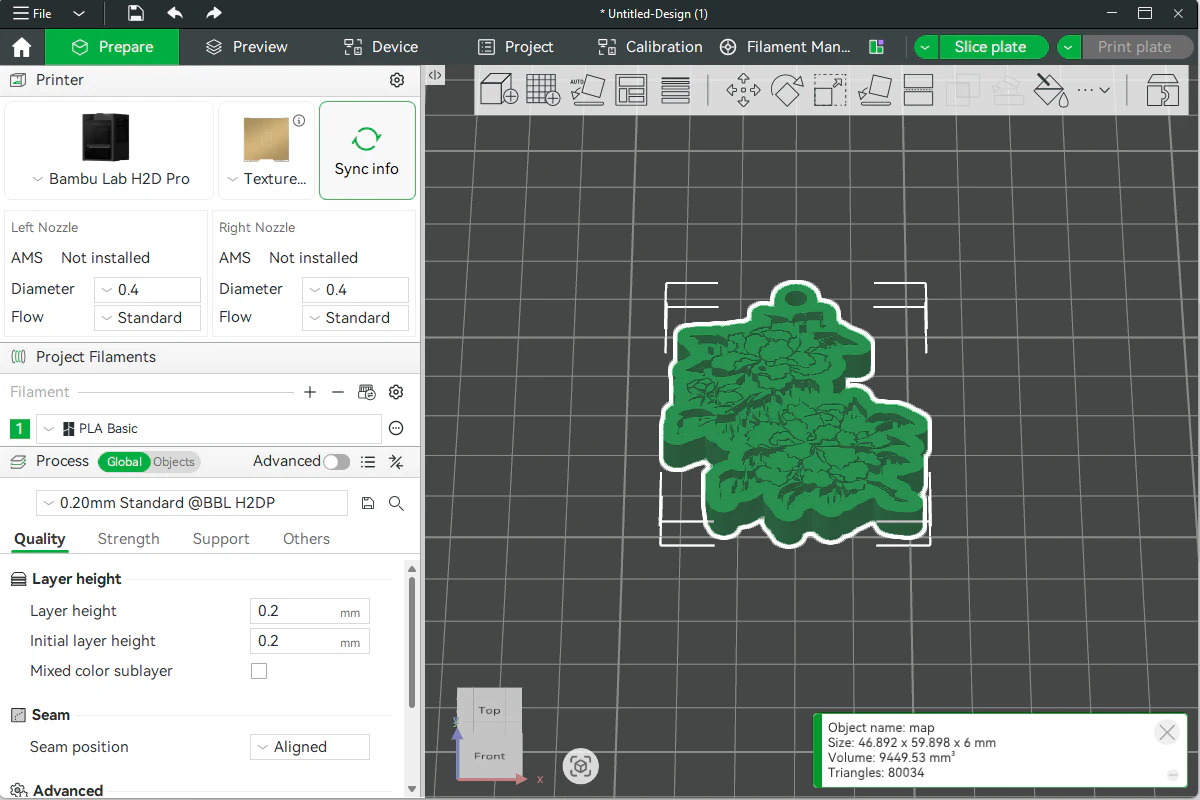
- Why it happens
- An STL holds the shape only, with no colours. A 3MF keeps each colour as its own part, but the slicer still needs a filament for each part.
- Fix
- Download the 3MF, keep its parts together as one object and choose a filament for each part. With one nozzle and no AMS, add a filament change at the layer where the new colour starts.
My Cricut cuts every letter separately
- Why it happens
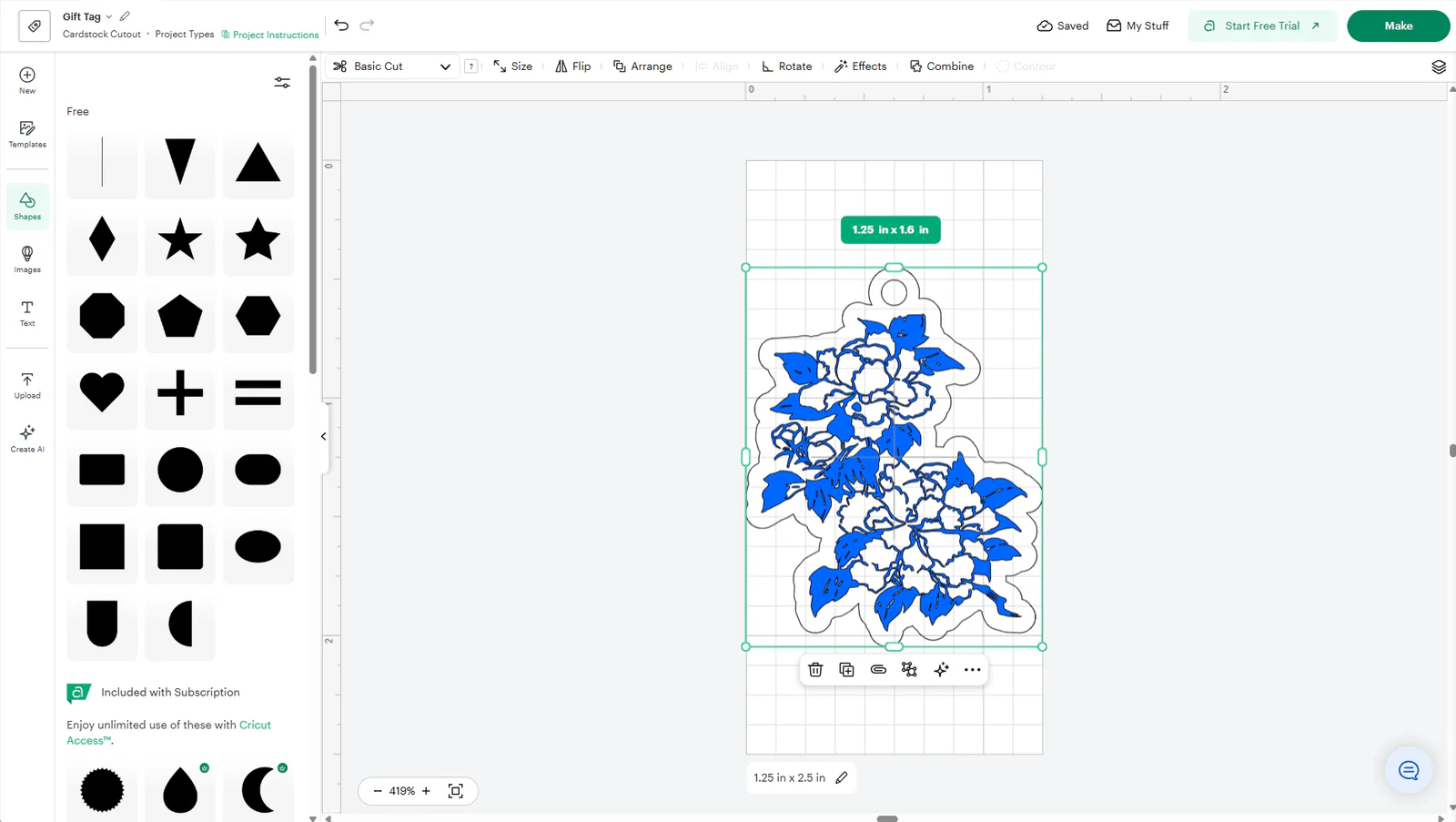
- Design Space cuts every separate shape on its own unless you join them, and Attach only keeps pieces in place on the mat.
- Fix
- Pick a script font that joins its letters, or select the letters and the backing and click Flatten for Print Then Cut. For vinyl, select everything and click Attach so the layout stays as you arranged it.
My UV print looks pale or see-through
- Why it happens
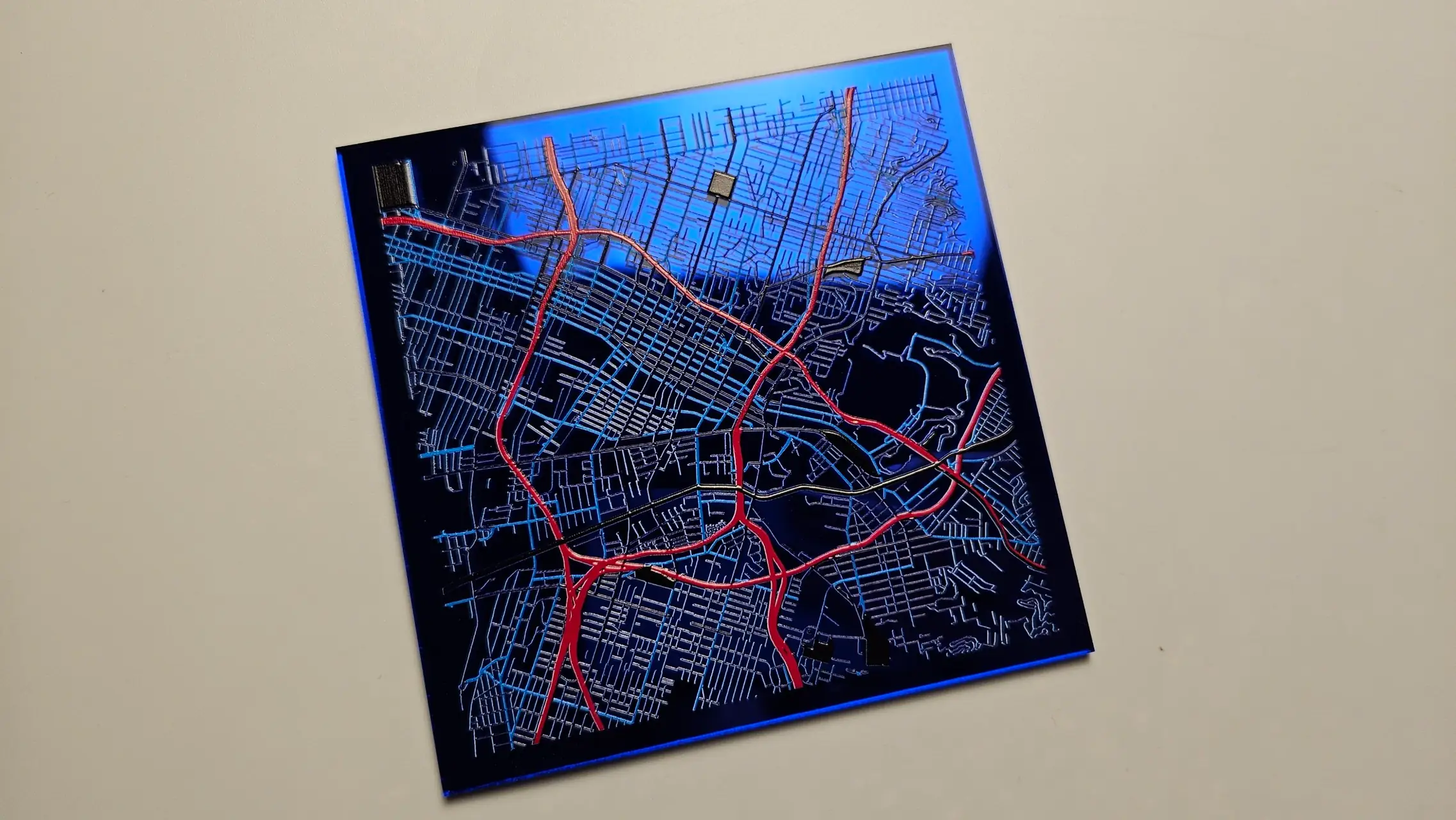
- UV ink is semi-transparent. Without a white layer under it, the colour of the surface shows through and dark or clear sheets swallow the colours.
- Fix
- Print a white backer first, under the whole design or only under the parts that need solid colour. Hide the Background at export so the printer can build the white from the transparent PNG.
Troubleshooting in each guide
These guides end with their own troubleshooting section.
- Design Editor: make a name tag with engraved text
- Make a name keychain with a hat
- Check a depth map before relief engraving
- Your first project: make a name keychain
- Your first map in the Map Designer
- Import a cut-and-engrave design: a real software walkthrough
- Print MyLaserTools artwork on clothing with xTool Apparel Printer
- Run a laser material test in xTool Studio or LightBurn
- Which file to download for your machine
- Print and cut in LightBurn: align artwork and cut paths
- Use MyLaserTools in xTool Studio: SVG cutting and CO₂ engraving
- Print and cut MyLaserTools designs in Silhouette Studio
- Cut vinyl and Print Then Cut MyLaserTools designs in Cricut Design Space
- Edit MyLaserTools SVG files in Inkscape or Adobe Illustrator
- 3D print MyLaserTools models: Bambu, Snapmaker, PrusaSlicer and Cura
- Print MyLaserTools PDFs and PNGs at actual size on an inkjet printer
- Cut and assemble layered SVG projects in LightBurn or xTool Studio
- Prepare a photo engraving in LightBurn or xTool Studio
- Mixed media maps: laser cut, score, UV print and 3D print in one piece
- UV printing full-color maps on wood and acrylic
Email Updates
Keep up with MyLaserTools.
Email me about new tools, product updates, tutorials, and occasional MyLaserTools offers. Unsubscribe at any time.
Tag us on Instagram
Share what you made with @mylasertools
Join our Facebook Group
Share creations, ask questions, get inspired
Contact & Follow
Resources
YXE Creations Craft Hub Inc
© 2026 MyLaserTools.com. All rights reserved.