
Getting started with KerfScript: your first laser cut design written as code
Difficulty: beginner, no coding experience needed. Time: 15 minutes. Best method: laser cutting in 3 mm plywood or acrylic.
Most laser designs start in a drawing program, and every change means drawing again. In KerfScript you write down how the design is built instead: a rectangle this wide, a hole this far from the edge, a name engraved in the middle. Change one number and the rest follows.
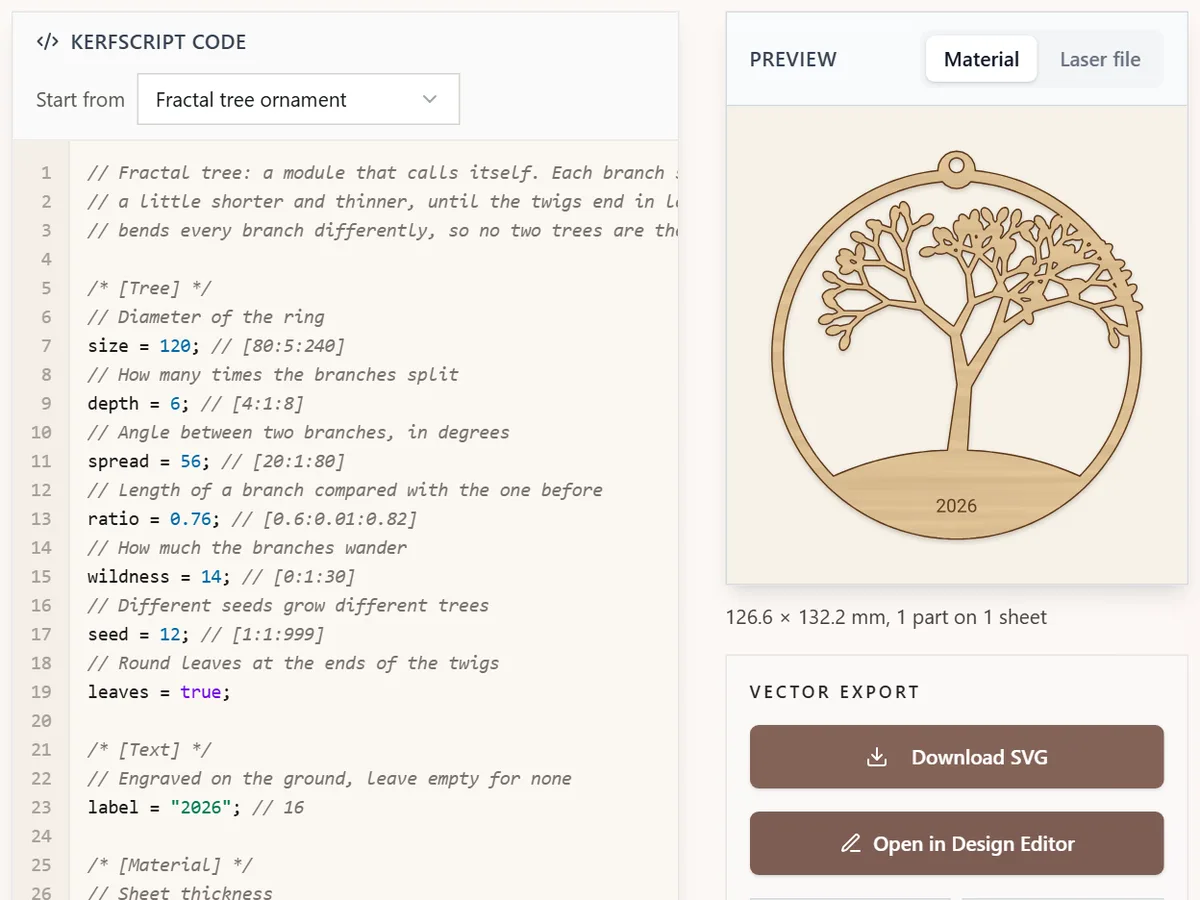
The playground runs KerfScript in your browser. Type on the left, see the cut parts on the right, and download a file your laser software opens like any other SVG or DXF.
What You'll Need
- A computer with a recent browser. A keyboard makes typing code much easier than a phone
- A laser cutter and its software, such as LightBurn, xTool Creative Space or Inkscape
- A sheet of 3 mm plywood or acrylic for a first test
Step 1 - Play with an example
Open the playground. The Clock face example is already running. Under Settings, drag Size and watch two things change at once: the clock in the preview, and the number after size = in the code. The sliders and the code are the same thing.
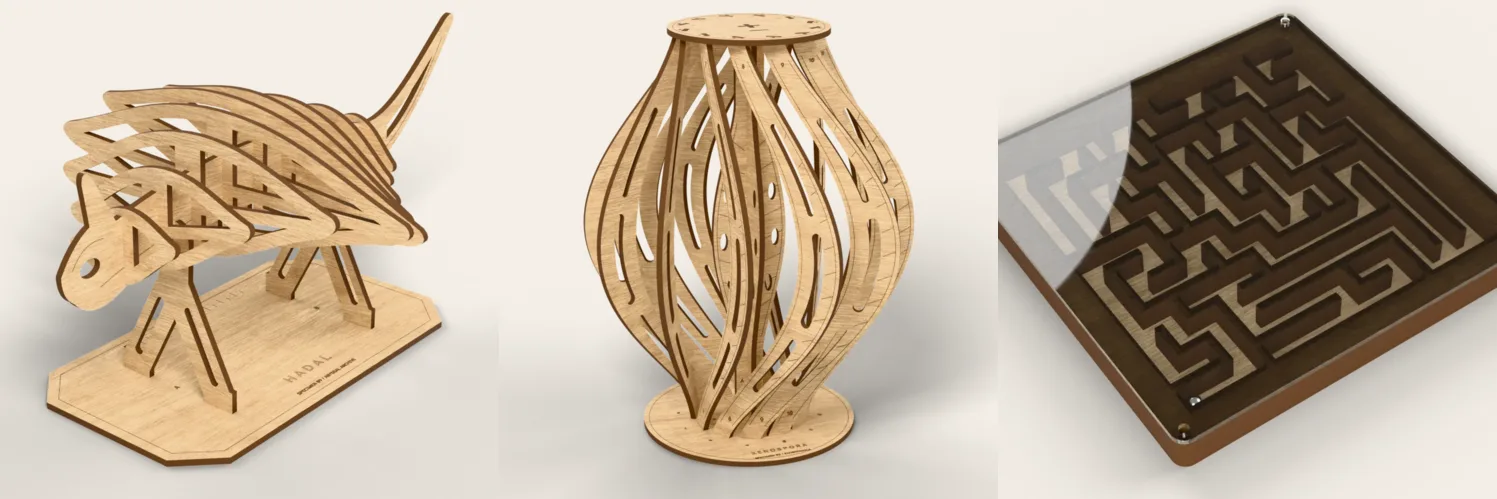
Pick other designs under Start from: a finger-jointed box, gift tags from a list of names, a tilt maze or a slot-together sculpture. Each one is ordinary KerfScript you can read and change.
Step 2 - Write your first shape
Clear the editor and type one line: rect([80, 40], r = 6);. That is a rounded rectangle, 80 by 40 mm, with 6 mm corners. Everything outside a layer is cut, so this is already a finished cut file.
Now punch a hanging hole. difference() takes the first shape and removes the ones after it: difference() { rect([80, 40], r = 6); translate([8, 20]) circle(d = 5); }. You can spread it over several lines, KerfScript does not mind.
Measurements are in millimetres, the x axis points right and the y axis points up. A rectangle starts at [0, 0], so the hole sits 8 mm from the left edge, halfway up. If you make a typo, the line turns red and the Console under the editor says what went wrong.
Step 3 - Engrave a name
Add a line at the end: engrave() translate([44, 20]) text("Hello", size = 12, halign = "center", valign = "center");. The text goes on the engrave layer, so your laser fills it in instead of cutting it out.
Text uses Roboto unless you add font = "Pacifico" or the name of any other font on MyLaserTools. Letters are turned into outlines, so the file looks the same on any computer. Use score() instead of engrave() for a thin line, like a fold mark or a border.
Step 4 - Turn numbers into sliders
Move the numbers into variables at the top of the code and use the variables below. A comment after a variable turns it into a control under Settings:
width = 80; // [40:5:200]makes a slider from 40 to 200 in steps of 5.label = "Hello";makes a text box.hole = true;makes a switch.shape = "round"; // [round, square]makes a list to choose from.- A comment line just above the variable becomes its description, and
/* [Size] */starts a new group.
If you have used the OpenSCAD customizer, these are the same comments.
Step 5 - Let KerfScript do the fiddly parts
- Kerf. Wrap your design in
material(thickness = 3, kerf = 0.15) { ... }and every cut outline moves out by half the kerf, so slots and tabs fit. Cut the Kerf and fit test example once to measure your own laser. - Finger joints.
finger_rect([100, 60], "out")draws a panel with finger joints sized from the material thickness. Join an"out"edge to an"in"edge of the same length. - A whole box. Start with
use <kerf/box>andbox([120, 80, 50], lid = true);gives you six panels that fit together. The Finger-jointed box example shows it with sliders. - Several pieces. Name each piece with
part("side", qty = 2) { ... }. The playground lays them out on sheets and lists them under Parts with their sizes and cut length.
Choose Your Build Method
Check, download and cut
- Switch the preview to Laser file. Red is cut, blue is score and black is engrave, the same colours most laser software expects.
- Check the size under the preview, then click Download SVG. Use Download DXF if your software prefers DXF. A design on several sheets downloads one DXF per sheet in a zip.
- Import the file at its real size. The SVG is in millimetres, with one layer per KerfScript layer.
- Set power and speed for each layer and cut the engrave and score layers before the cut layer, so the piece does not move.
- Click Save .kerf code to keep the code for next time, or Copy link to share it. The whole design is inside the link, nothing is stored on our side.
Make It Yours
- Turn a list into a sheet: open Gift tags from a list, type your names separated by commas and cut a whole set at once.
- Measure your laser with the Kerf and fit test, then put that kerf into every design you write.
- Read the KerfScript language reference for every shape, transform and function.
Keep up with MyLaserTools.
Email me about new tools, product updates, tutorials, and occasional MyLaserTools offers. Unsubscribe at any time.
© 2026 MyLaserTools.com. All rights reserved.