

How to make engraved wooden keychains
The tool builds the keychain blank around your picture: the cut line, the ring tab and the hole. An SVG engraves as vector fill and a photo engraves as a greyscale image.
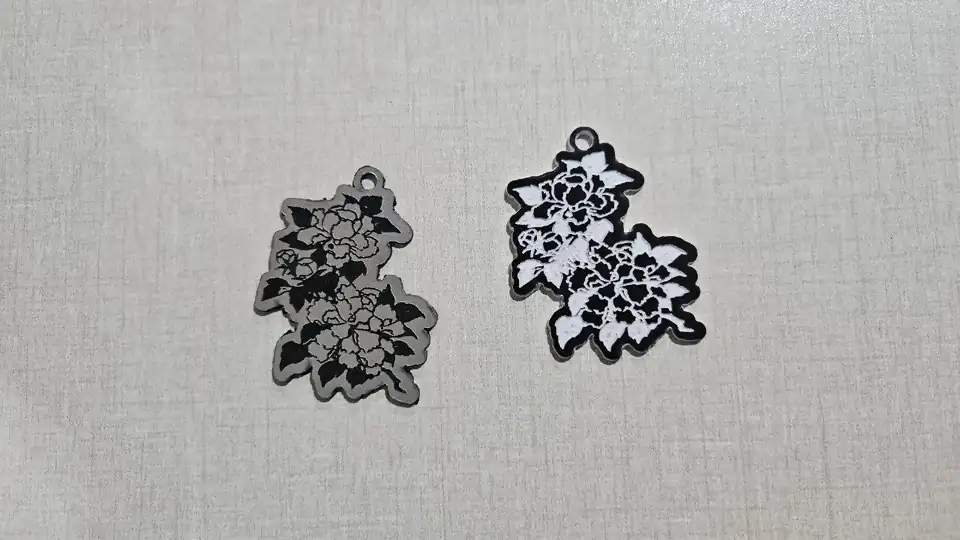
What You'll Need
- An SVG from the Art Library or your own file, or a JPG, PNG or WebP photo.
- 3 mm plywood, basswood or MDF, or a 3D printer and two filament colours.
- A split ring or a ball chain.
1. Open the artwork
Upload a file, choose Browse the Art Library to pick a piece without leaving the tool, or open a monochrome piece in the Art Library and choose Make it into, then Keychain.
2. Choose the outline and size
Follow transparency cuts around an SVG or a transparent PNG with an even border. Cut to shape keeps the whole picture inside a circle, heart, arch or rectangle, and you can drag the artwork to place it. Set the design size, then move the hole along the top edge until it sits on solid material.
3. Download
For a laser, download the SVG: the engraving is blue, the optional score line is teal and the cut is red. For a 3D printer, switch Make it on to 3D printer and download the 3MF or STL.
Choose Your Build Method
Engrave and cut
- Engrave the blue layer first. Use image or dither mode if the engraving is a photo.
- Cut the red line last so the blank does not move while it engraves.
- Sand the face lightly and add a coat of oil or wax before fitting the ring.
Make It Yours
A pet portrait on a heart makes a small gift, and a bird from the Art Library cut along its outline works as a bag tag. Engrave a name on the back in the Design Editor.
Keep up with MyLaserTools.
Email me about new tools, product updates, tutorials, and occasional MyLaserTools offers. Unsubscribe at any time.
© 2026 MyLaserTools.com. All rights reserved.