

Making personalized keychains with the Keychain Generator
Difficulty: easy. Time: 15 minutes design, 5-20 minutes per keychain. Best methods: laser cutting acrylic or plywood, multi-color 3D printing.
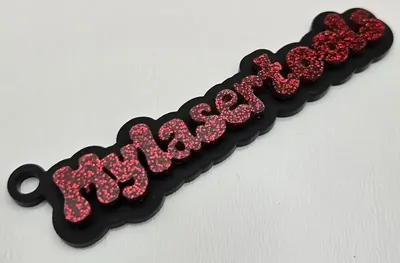
This is the workhorse personalization tool: type a name, pick a font, and the generator builds a keychain with the letters connected into one solid piece so nothing falls apart at the cutter. Two tabs at the top switch between the Layered style (connected text sitting on a slightly larger outline layer) and the Truck style (a little truck silhouette with the name riding on it). Both styles get a proper hanger hole with a reinforced ring, and both export as SVG for laser cutting or STL/3MF for 3D printing.
What You'll Need
- Laser cutting: 3 mm acrylic in two contrasting colors for the layered look, or laser-grade plywood for a warm wood version
- Laser assembly: CA glue or 3M 467/468 tape to bond the text layer to the outline layer
- 3D printing: any FDM printer; a multi-color setup makes the two-layer contrast automatic
- Hardware: keychain snap clips or split rings and jump rings
Step 1 - Pick a style and type the name
Choose Layered or Truck with the tabs, then enter the name in Your Text. Pick a font - bold, rounded script fonts connect cleanly and survive small sizes. Short names (3-8 letters) make the best keychains; very long names get thin and fragile at keychain scale.
Step 2 - Tune size, border, and the hanger hole
- Keychain Width sets the finished size - 60-80 mm is the sweet spot for a bag or key ring.
- Outline Thickness / Border Thickness controls how much the backing layer extends past the letters. 2-3 mm reads as a clean halo without looking chunky.
- Turn on Add Hanger Hole and adjust Hole Size, Inner Hole Size, and Hole Offset so the ring of material around the hole stays at least 2 mm wide.
- Add an optional Symbol (heart, star, paw and friends) and place it with Symbol Position and the offset sliders.
- On the Truck style, use Text Offset X / Y to seat the name nicely inside the truck body.
Step 3 - Export
Download SVG for the laser - the layers come out as separate paths so you can cut text and backing from different colors. For 3D printing, set a thickness and download STL or 3MF; the file is a single merged multi-layer model with the text raised above the base.
Choose Your Build Method
Laser cutting
- Cut the outline layer from your base color and the text layer from a contrasting color. On plywood, a light engrave pass on the text layer edge adds definition.
- Deburr and peel masking, then bond the text to the backing with a thin bead of CA glue or pre-applied 3M 467 tape - tape is cleaner on glossy acrylic.
- Keep cut speed conservative on the hanger ring; it is the highest-stress area of the whole part.
- Thread a jump ring through the hole and clip on a snap clip or split ring.
Make It Yours
- Batch a whole classroom or team: same font and width, one name per keychain, cut as a single sheet.
- Two-tone acrylic combos sell: glitter text on matte black, pastel on white, mirror gold on deep green.
- Use the Truck style with a kid's name for backpack tags - bump the width to 90 mm so little hands can grab it.
- Add the heart symbol between first initials for couples' key sets.
- Cut the layered style from clear acrylic and engrave the text layer instead of stacking for a subtle glass-look tag.
- Print a glow-in-the-dark text layer so keys are findable in a dark bag.
- Match the snap clip color to the text layer for a finished retail look.
New free tools, every month.
New laser cutting tools, what's coming next, and features we're building right now. Only MyLaserTools.com news. No spam, ever.
© 2026 MyLaserTools.com. All rights reserved.