

Making a 3D printed hexagon city plaque with the Classic Layered City Map for 3D Printing preset
Difficulty: Easy. Time: 30 minutes of design, 1–3 hours of printing depending on size. Best methods, in order: 3D printing (it's tuned for it), UV print, laser (engraving only - see below).
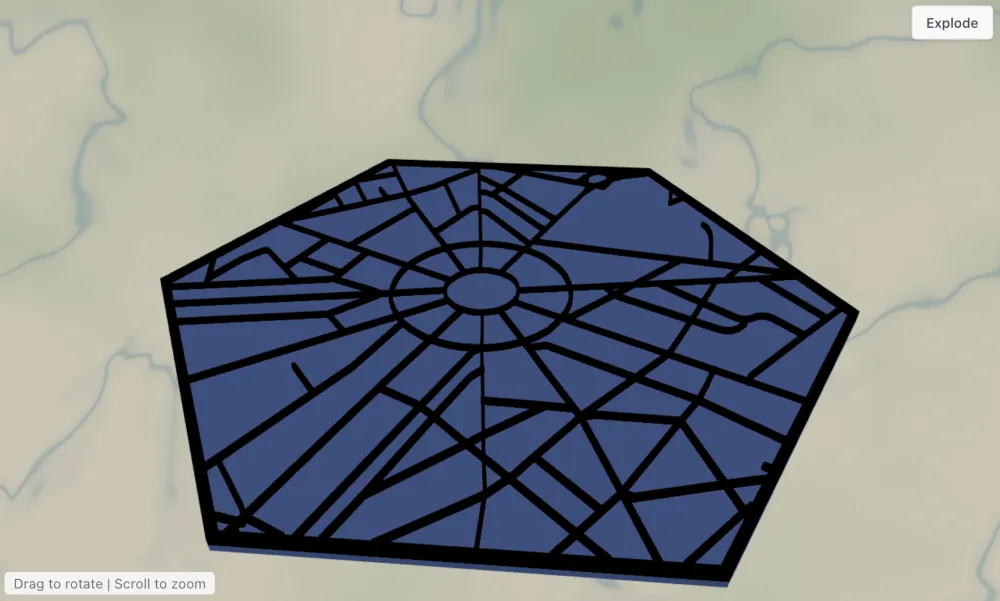
This preset is the fastest way to a printable city keepsake: a hexagon plate in blue with every road in the neighborhood raised on top in black. Two layers, no assembly, prints in an evening - great for desk gifts, magnets, and first-time map makers.
What You'll Need
3D printing
- Any FDM printer; PLA in blue + black for a two-color print (multi-material or manual filament swap), or one color
- Slicer that accepts 3MF (Bambu Studio, PrusaSlicer, OrcaSlicer)
UV print / sublimation
- High-res PNG export, hexagon blank or square blank (the hexagon shape is baked into the artwork)
Laser (engrave variant)
- One piece of 3 mm laser-grade plywood or anodized aluminum; engrave the roads instead of cutting them
Step 1 - Start from the preset
Open the City Map 3D preset. It loads framed on the Arc de Triomphe in Paris at zoom ~14.8 - a tight neighborhood view where individual streets are big enough to print. Search your own place and keep the zoom in the 14.5–15.5 range: closer and you only get a few blocks, farther and street ribbons get too thin to print cleanly. Center the frame on a landmark or intersection that means something - the hexagon crops aggressively, so what's in the middle is the star.
Step 2 - Tune the layers
Just two layers:
- Major roads - Solid mode, everything in black
#000000: motorways at width 5, primary and motorway links at 4, streets and secondary at 3, secondary links at 2. These widths are tuned so roads print as sturdy raised ribbons. If your area looks crowded, droproadsStreetto width 2; if it looks empty, bump it to 4. - Backplate - solid hexagon plate in
#236cd1blue. Swap the color to match your filament.
The global border (10 padding) insets the roads from the hexagon edge so nothing gets clipped mid-street.
Step 3 - Export
- 3D printing: export 3MF for a two-color file (blue plate, black roads) or STL for single color.
- UV print: export the high-res PNG; turn the Background toggle off if you want just the black roads on a transparent background to print onto a colored blank.
- Mounting holes: add a Hanger hole ring before export if this will be an ornament, or Corner holes to screw it to a board.
Choose Your Build Method
3D printing
- Open the 3MF in your slicer - the backplate and road layer arrive stacked with their colors assigned. Single-extruder printers: slice the STL and add a filament change at the top of the plate layer for the same two-tone effect.
- Print flat, no supports, 0.2 mm layers. A 0.4 mm nozzle handles the width-2 streets at 130 mm+ plaque sizes.
- Scale advice: 120–180 mm across flats is the sweet spot. Below 100 mm, hide the width-2
roadsSecondaryLinksbefore export so you don't get unprintable slivers.
Make It Yours
- This preset loves dense, characterful street grids: Paris étoiles, Barcelona's Eixample blocks, Tokyo lanes, your own cul-de-sac.
- Filament swaps: gold roads on matte black plate (
backplateColor#1f2937, roads#D4AF37) looks premium; white-on-terracotta is friendly. - Add a Water layer (Solid, invert as holes) if your neighborhood touches a river - the plate color shows through.
- Switch
exportShapeto circle for a coaster set: print four neighborhoods from the same city. - Hanger hole ring + 90 mm size = Christmas ornament of the street where you got engaged.
- Use the heart icon in the export modal to mark home before printing.
- Laser owners: skip cutting - export the combined SVG and engrave the road layer onto a solid hexagon for a one-piece version.
New free tools, every month.
New laser cutting tools, what's coming next, and features we're building right now. Only MyLaserTools.com news. No spam, ever.
© 2026 MyLaserTools.com. All rights reserved.